Most people split their thinking across too many places. The meeting notes are in Notion. The spec is in Google Docs. The idea you had on Tuesday is in a phone note you’ll never find again. And none of it is anywhere near the tasks and projects it belongs to.
Build Momentum Notes keeps what you know next to what you’re doing. One login. No context switching. No broken links between thinking and execution.
Capture, organize, and find everything — without leaving your system.
The biggest enemy of good note-taking isn’t laziness — it’s the moment you have to decide where something goes before you’ve even finished writing it. That friction is why ideas end up in random places or nowhere at all.
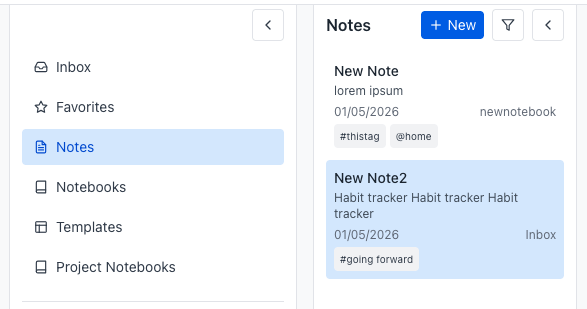
Build Momentum Notes has an inbox for a reason. Drop the thought, the spec, the meeting summary, the half-formed idea. File it when you’re ready. The capture never waits for the organization.
Different notes need different homes. A project spec belongs with the project. A journal entry belongs in a personal notebook. A quick reference belongs wherever you’ll think to look for it.
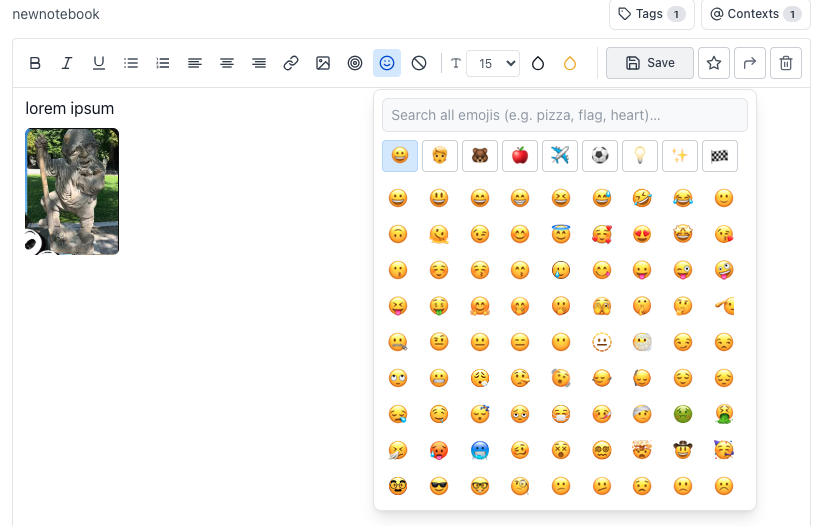
@ system you use in tasks, applied to notes. Everything speaks the same organizational language.Notes that are hard to read don’t get read. Build Momentum’s editor gives you everything you need for long-form clarity without burying you in toolbar options.
Write once. Come back months later and still understand it.
Every project in Build Momentum can have its own dedicated notebook. When you archive a project or hand it off to future-you, the notes come with it. No hunting through Notion databases. No Googling your own decisions.
Weekly reviews. Meeting agendas. Project kick-offs. Client briefs. If you write the same kind of note more than once, it should be a template. Build Momentum Pro and Ultimate users can create reusable templates for any repeating workflow — so the structure is already there when you sit down to write.
@work, @personal, @client mean the same thing everywhereUp to 50 notes, up to 5 notebooks, basic formatting and organization
Up to 5,000 notes, up to 100 notebooks, enhanced rich text, template-driven workflows
Unlimited notes and notebooks, full power-user note workflows
Your notes don’t disappear when you hit a limit — you’ll know when it’s time to upgrade.
The strength isn’t the editor. It’s the proximity.
Genuinely powerful for relational databases and team wikis. Also genuinely easy to build a system so complex that nobody updates it. No native connection to your habits, tasks, or goals — everything lives in Notion or you maintain the bridge yourself.
Fast capture. Zero organization depth. Nothing connects to your projects or habits. Fine for shopping lists, not for running your work.
Not trying to out-feature Notion. The point is that your notes live in the same system as your tasks, projects, habits, and goals — so the gap between knowing and doing is as small as possible.
Do I need Notes if I already use Notion?
Depends on how you use Notion. If you use it as a team wiki or relational database, keep it. If you use it mainly for personal notes and project specs, Build Momentum Notes covers that with the advantage of everything living in one system alongside your tasks and habits.
Are there image size limits?
The in-app editor will let you know if an image can’t be inserted. Check the error message for the current limit — we don’t publish a number here because it can change with app updates.
What are templates and which plan do I need?
Templates are structured note starting points for repeating workflows — reviews, meeting agendas, project kick-offs. They’re available on Pro and Ultimate plans.
What happens to Project Notebooks if I delete a project?
Check the in-app deletion modal before confirming — it shows exactly what will be removed. As with all data decisions, the modal reflects the live behavior of the app.
Your notes belong next to your work — not one tab switch away from it.
Start free — no credit card required.
